 markdown6
Cloud sync
With Pro, keep documents in sync across your computers with 1 GB of cloud storage. When there’s a conflict, you decide what to keep.
Some features in this article need Pro (marked “Pro”).
cloud sync needs Pro and becomes available when our North America service launches. Your international edition account and data are stored in North America.
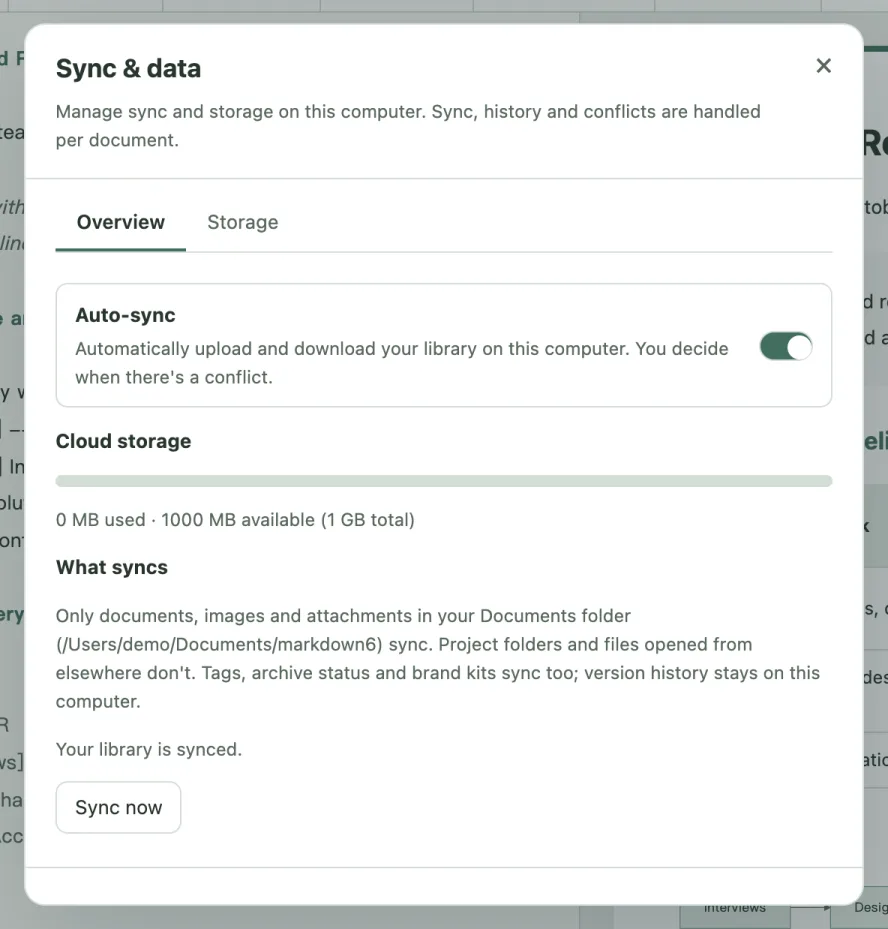
#Turn on auto-sync
After you first subscribe, markdown6 asks whether to turn on auto-sync. You can switch Auto-sync on or off any time in any of three places (they’re the same switch): Settings › Sync; the bottom of the ▾ menu next to the sync button at the top right of a document; or Overview in Sync & data, which opens when you click the sync status in the status bar. With auto-sync on, markdown6 uploads and downloads every 60 seconds and asks you when there’s a conflict. Click Sync now any time.
#What syncs
| Syncs | Doesn’t sync |
|---|---|
| Documents, images and attachments in your Documents folder | Project folders |
| Tags and archive status | Files opened from elsewhere |
| Brand kits | Version history (stays on this computer) |
#The sync button
The sync button next to New in the top bar shows the current document’s status: Synced, Newer here ↑, Newer in cloud ↓, Not uploaded ↑, Conflict, Deleted in cloud or Not synced (project folders and files from elsewhere). Click ▾ next to it to compare this computer with the cloud and choose to overwrite the cloud, Replace local copy, open Sync details or Resolve conflict.
#Resolve a conflict
A conflict happens when the same document was changed on two computers. Open Resolve conflict:
- Text: for each section choose Use local or Use cloud, or edit the merged result directly. You can also take the cloud version or your local version for the whole document. Finish with Confirm merge, or Keep as two documents.
- Images and attachments: keep both, use the cloud version or use the local version.
- Tags and archive status: use cloud or use local.
- Deleted in the cloud: accept the deletion, or restore it as a new document.
the content before and after resolving a conflict is saved in version history, so a wrong choice can be undone.
#Cloud storage
Pro includes 1 GB of cloud storage; usage is shown in Sync & data › Overview. Clear downloaded copies on the Storage tab only removes copies that can be downloaded again — never your documents.
If Pro ends, files on your computer are untouched and you can keep using markdown6 Free. Your cloud data is kept, and syncing resumes when you renew.
Still stuck? Email support@miniidealab.com.