 markdown6
Themes
Nine themes that restyle the editor, preview and exports together. Moonlight and Ink are free; the rest come with Pro.
Some features in this article need Pro (marked “Pro”).
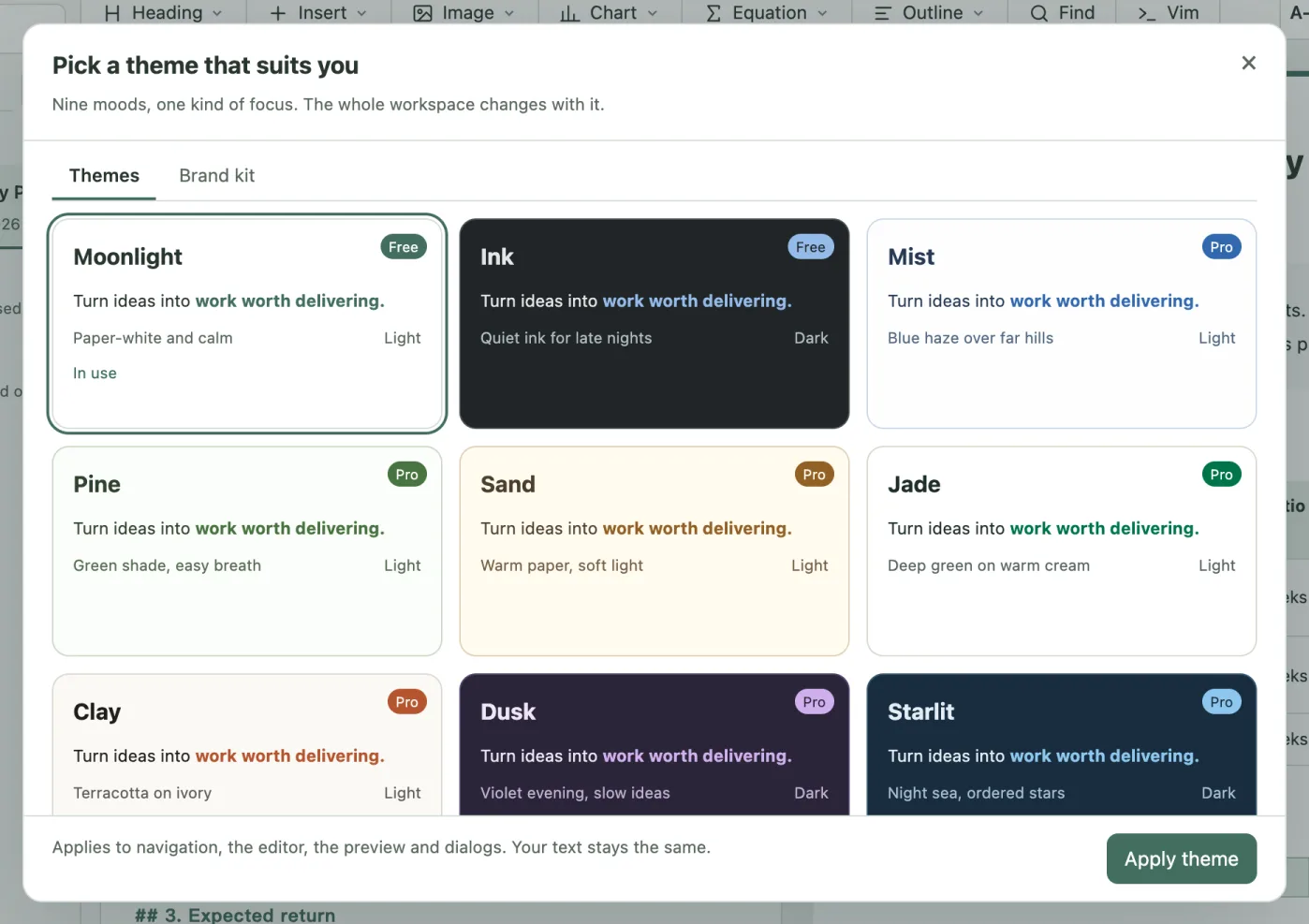
#Nine themes
| Theme | Light or dark | Free or Pro |
|---|---|---|
| Moonlight | Light | Free |
| Ink | Dark | Free |
| Mist | Light | Pro |
| Pine | Light | Pro |
| Sand | Light | Pro |
| Jade | Light | Pro |
| Clay | Light | Pro |
| Dusk | Dark | Pro |
| Starlit | Dark | Pro |
A theme sets the colors of the whole workspace — sidebar, editor, preview and dialogs — and of exported files. Your text doesn’t change. Charts follow the theme too.
#Preview and apply
- Click Themes in the top bar to open “Pick a theme that suits you”.
- Click a theme card to preview it; the card shows “Not applied yet”.
- Click Apply theme and the whole workspace changes.
#Pro themes
You can preview Pro themes without Pro; the button says Upgrade to use. After you upgrade you can apply them. If Pro ends, markdown6 switches to the free theme of the same lightness (Moonlight for light, Ink for dark) and tells you; your choice is remembered and comes back when you renew.
#Dark themes and exports
PDFs exported with a dark theme have a dark background, just like the preview. If you plan to print, switch to a light theme first. Word files follow a document standard and are always white; see PDF and Word export › Word styles.
Still stuck? Email support@miniidealab.com.