 markdown6
PDF and Word export
Turn a finished document into a client-ready PDF, or a Word file your client can keep editing — in US Letter or A4, laid out for English or Chinese documents.
Some features in this article need Pro (marked “Pro”).
On this page
How export worksDocument language and paperDaily exports and the footer markEquations and charts in WordWord stylesThemes and brand kitsIf an export failsPDF and Word export need a markdown6 account and become available when our North America service launches. Single-file HTML works now; see Single-file HTML.
#How export works
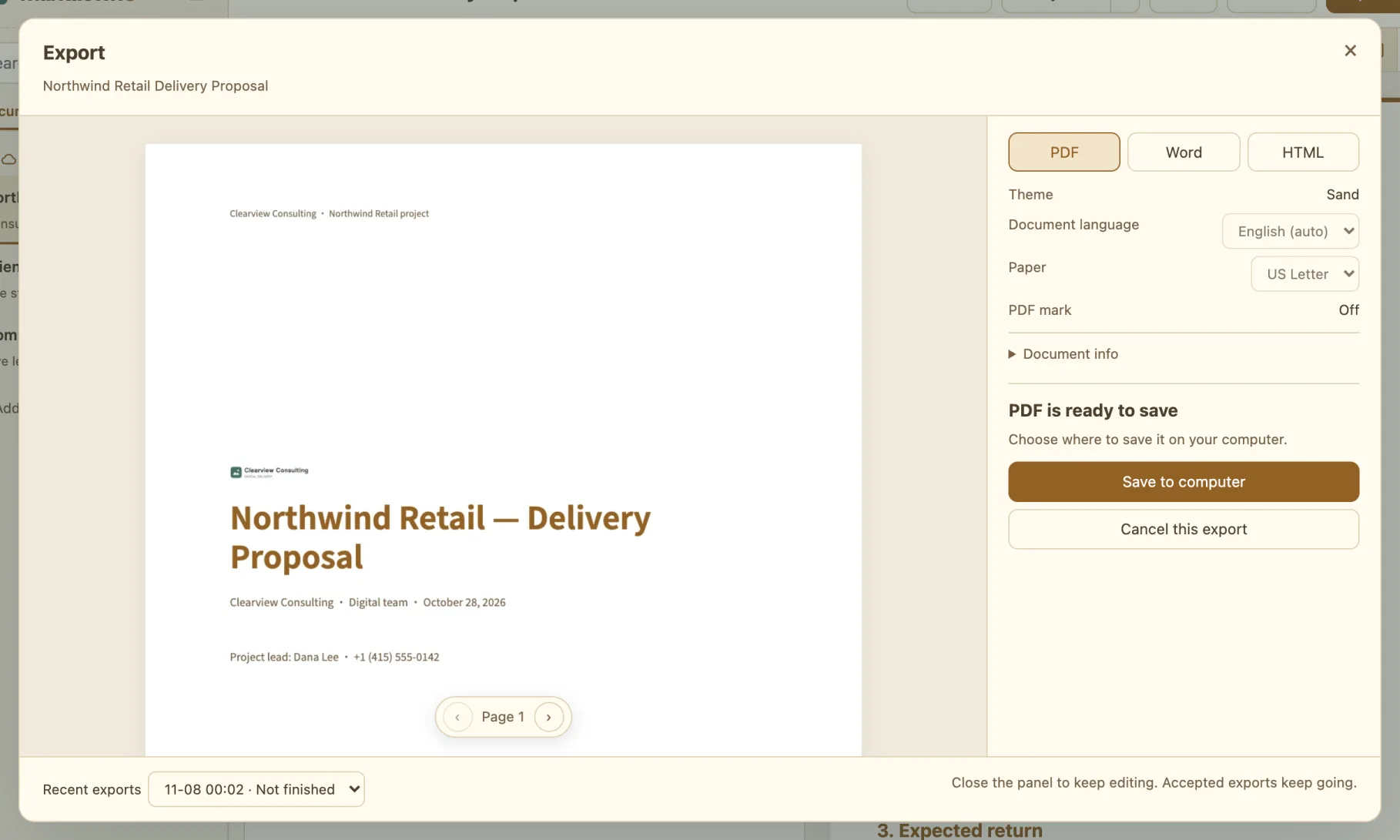
- Click Export ↗ in the top-right corner (⌘⇧E) and choose PDF or Word on the right.
- Check Document language and Paper (see below). Expand Document info to fill in a title, author and date if you need them; they only appear in this export’s layout, not in your text.
- Click Create PDF (or Create Word). If you aren’t signed in, markdown6 asks you to sign in first.
- The first time, markdown6 explains that the document and the images and attachments it needs are uploaded to create the file, and that results are deleted from our server after 24 hours. Tick I understand and agree to upload and click Agree and continue.
- When the file is ready, page through the PDF, then click Save to computer.
You can close the panel and keep editing while it’s being created. Recent exports at the bottom of the panel brings back recent results.
#Document language and paper
- Document language is detected from the text — a document that is mostly English is laid out as an English document — and you can change it. Each document remembers your choice. It decides captions (“Figure 1”, “Table 1”), the table of contents title, page numbers (“Page 1 of 3”), date format (“November 7, 2026”) and which Word styles are offered.
- Paper is US Letter (1-inch margins) or A4. It defaults to US Letter when markdown6 is in English, and each document remembers it.
#Daily exports and the footer mark
| Free | Pro | |
|---|---|---|
| PDF and Word combined | 3 a day | 200 a day |
| PDF mark | “Made with markdown6” on each page | None |
- Daily counts reset once a day; unused exports don’t carry over.
- Only exports you save count; failed ones don’t.
- Single-file HTML is created on your computer and never counts; see Single-file HTML.
#Equations and charts in Word
The .docx file stays editable in Word: headings, body text, lists and tables use native Word formatting, equations become Word equations you can edit, and Mermaid charts become images.
#Word styles
Word is for the other person to keep working in, so it follows a document standard instead of copying the screen. For English documents you can choose:
| Word style | Best for | Highlights |
|---|---|---|
| Business (recommended) | Proposals, reports and client deliverables | Calibri 11 pt, 1.15 line spacing, 8 pt after paragraphs, Calibri Light headings in your theme color, “Page 1 of N” footer |
| Report | Research reports, white papers, technical bids | Cover and contents, Times New Roman 12 pt, bold Arial headings, “1 / 1.1” numbering, three-line tables, captions numbered by chapter (“Table 2-1”) |
- Color: theme color (headings and table headers use your theme) or black and white. Word files are always on white paper; dark themes switch to colors that work on white.
- Heading numbers: keep as written, or number automatically (existing numbers are removed so they don’t double up).
- Table of contents: tick it to add one. When the file opens, Word asks whether to update fields — choose “Yes” to fill in page numbers.
- A line starting with “Table 1: …” above a table becomes its caption, and an image’s description becomes its figure caption; Word can renumber them in one go.
- Only Word’s built-in styles are used, so your client can restyle the document with their own template.
Chinese documents get three Chinese standards instead, including one for official government documents.
If an equation can’t be converted, markdown6 asks before exporting whether to Continue: convert these equations to images or Go back and edit.
#Themes and brand kits
- Exports use the current theme. The dark themes (Ink, Dusk and Starlit) export PDFs with a dark background, which reads well on screen; switch to a light theme before exporting if you plan to print. Word is always white.
- With Pro, exports can use your brand kit: logo, cover, header, footer and contact details.
- Without Pro, Pro themes and brand kits export as the free theme in PDF and Word.
#If an export fails
| What you see | What to do |
|---|---|
| An equation or chart error | Click Go to text, fix that line and create the file again |
| A missing image | Put the image back or remove the reference; see Images › When an image is missing |
| No connection, or the service is busy | Try again later; failed exports don’t count. If it’s urgent, export single-file HTML |
| No exports left today | They reset tomorrow, or upgrade to Pro for 200 a day |
| Not enough disk space or no permission when saving | Save somewhere else; your document isn’t affected |
Still stuck? Email support@miniidealab.com.