 markdown6
Documents
The Documents folder and project folders, search and tags, archive, version history, recovering deleted documents, and what happens when a file changes outside markdown6.
On this page
Documents are plain filesDocuments folder and project foldersOpen files from elsewhereSearch, tags and filtersArchiveRename, delete and other actionsVersion historyRecover deleted documentsWhen a file changes outside markdown6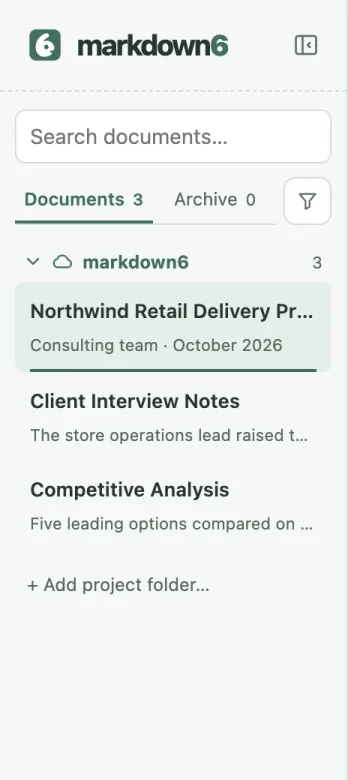
#Documents are plain files
markdown6 doesn’t lock your documents in a database. Every document is a plain .md file in your folder, with its images in the <document name>.assets folder next to it. Browse, copy and back them up with Finder or File Explorer; uninstalling markdown6 never deletes them.
#Documents folder and project folders
The list on the left is grouped by folder:
- Documents folder (with a cloud icon): the place you chose the first time you opened markdown6. New documents go here, and with Pro it can sync.
- Project folders: click Add folder at the bottom of the sidebar to add an existing project’s folder. It appears alongside the Documents folder and lists its
.mdfiles by folder. Project folders don’t sync.
Click ✎ on a group to give it a label; click × on a project folder to remove it from the list (only from the list — no files are deleted). Drag the list’s right edge to resize it, and double-click the edge to reset. You can also see and manage these folders in Settings › Library.
Right-click a document in the list to Open, Rename…, see its Version history, Archive it, Show in folder, Copy file path or Delete…. Right-click a group title to show it in its folder, give it a label, or collapse or expand it.
#Open files from elsewhere
File › Open… opens a .md file anywhere on your computer, and changes are saved back to that file. To manage it with the rest of your documents, use File › Move to Documents folder; the file and its image folder move together.
Files that aren’t UTF-8 open read-only with an offer to Save as UTF-8 document; after that you can edit the copy.
#Search, tags and filters
- Use the search box at the top of the list (“Search documents…”) to find documents.
- Click the tag icon next to the document title to open Manage tags: create, rename or delete tags, and tick them to tag the current document. Deleting a tag never deletes documents.
- Click the funnel at the top of the list to Filter by tag. With several tags selected, you see documents that have all of them.
#Archive
Put finished documents away with File › Archive. The Archive button at the bottom of the sidebar (it shows N archived when you have archived documents) shows archived documents. To return to the list, click it again or click ← Back to documents at the top. Unarchive brings a document back. Archiving doesn’t change the file itself. For private documents, see Encrypted documents.
#Rename, delete and other actions
The File menu also has Rename…, Save as…, Delete…, Show in folder, Copy file path and Copy Markdown; most are also in the right-click menu.
Deleted documents go to the Trash (Recycle Bin on Windows).
once the Documents folder is syncing, deleting a document also deletes it from the cloud. The cloud has no trash.
#Version history
markdown6 keeps versions of your documents on this computer: one every 5 minutes while you make changes, plus one before closing, restoring, overwriting or merging. Each document keeps up to 100 versions, and all documents share up to 5 GB.
Open File › Version history, pick a version, and choose Compare with current or view just that version. Click Restore this version and confirm. The current content is saved as a version first, so you can always switch back.
version history stays on this computer and doesn’t sync.
#Recover deleted documents
File › Recover deleted documents lists deleted documents that still have versions on this computer. Search, pick a version and click Restore as new document.
#When a file changes outside markdown6
If another app changes a document, markdown6 pauses auto-save for it and shows a notice above the editor. You can Compare, Keep both, Load disk version or Overwrite with mine. If the file was deleted or moved, choose Save to original location or Save as….
Still stuck? Email support@miniidealab.com.