 markdown6
User Guide › Themes and branding
Brand kits
Save your logo, brand colors, cover, header, footer and contact details as a kit and apply it to exports in one click.
Some features in this article need Pro (marked “Pro”).
Note
brand kits need Pro.
#Create a brand kit
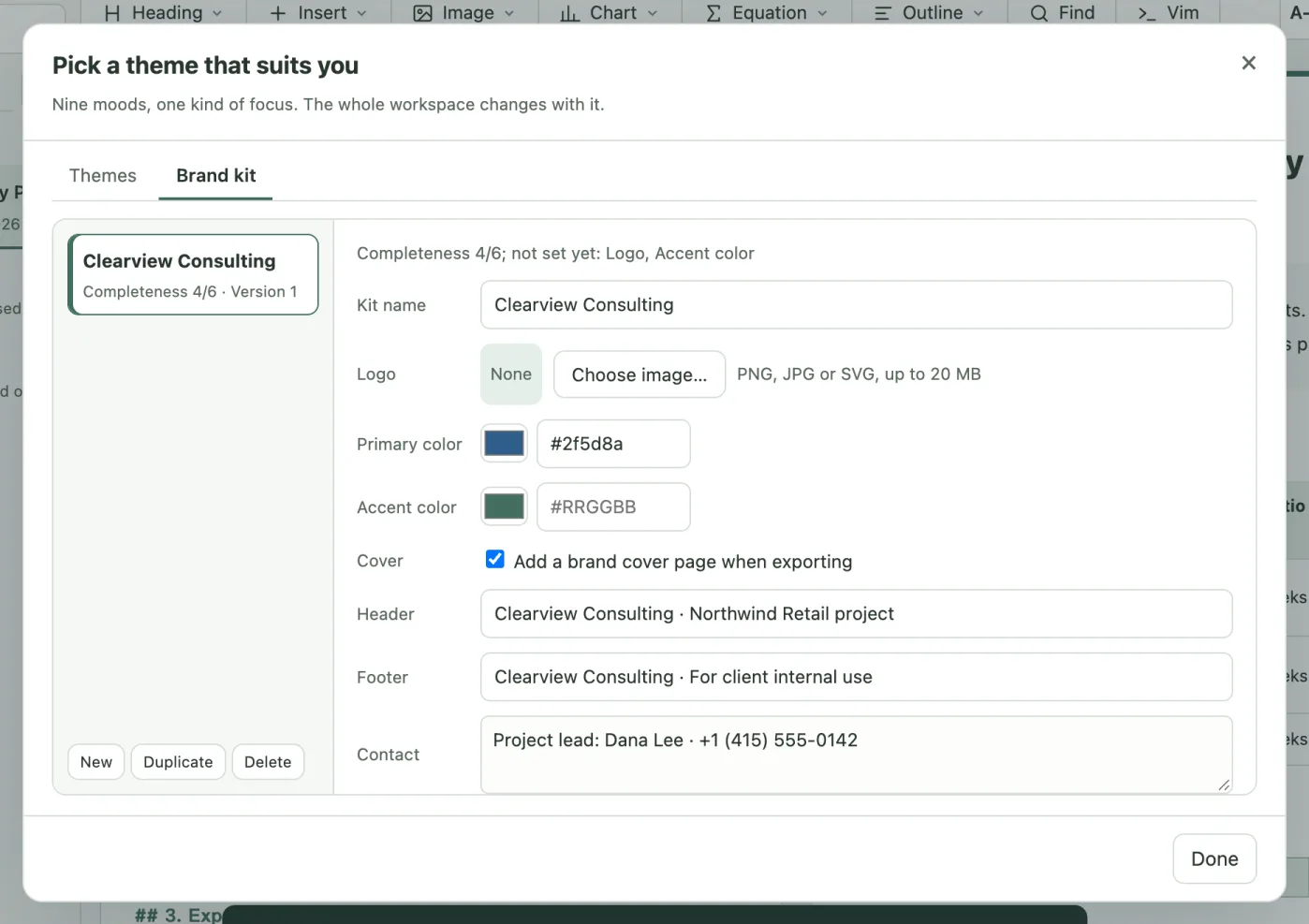
- Click Themes in the top bar and switch to Brand kit.
- Click New and fill in:
| Field | What it’s for |
|---|---|
| Kit name | Tells your kits apart, for example your company or client name |
| Logo | PNG, JPG or SVG, up to 20 MB |
| Primary color, Accent color | In #RRGGBB format; headings and charts use the primary color |
| Cover | Tick “Add a brand cover page when exporting” |
| Header, Footer | Text shown on every page |
| Contact | Contact details shown in exports, such as the project lead and phone number on the cover |
- Click Save kit. The list shows how complete each kit is (for example 4/6) and its version.
You can keep several kits, use Duplicate to start from an existing one, and Delete the ones you no longer need.
#Use it in an export
In the export panel, choose a kit and click Apply to this document. The document gets a copy of the kit as it is now: later changes to the kit don’t affect documents that already use it; apply it again to update.
#Across your computers
Brand kits sync across your computers with cloud sync. If the same kit was changed on two computers, you choose Use local (overwrite cloud), Use cloud or Keep both.
Still stuck? Email support@miniidealab.com.